An update failure can involve storage, connectivity, account state or compatibility. A short evidence record makes the next official support step more precise than repeatedly tapping Update.
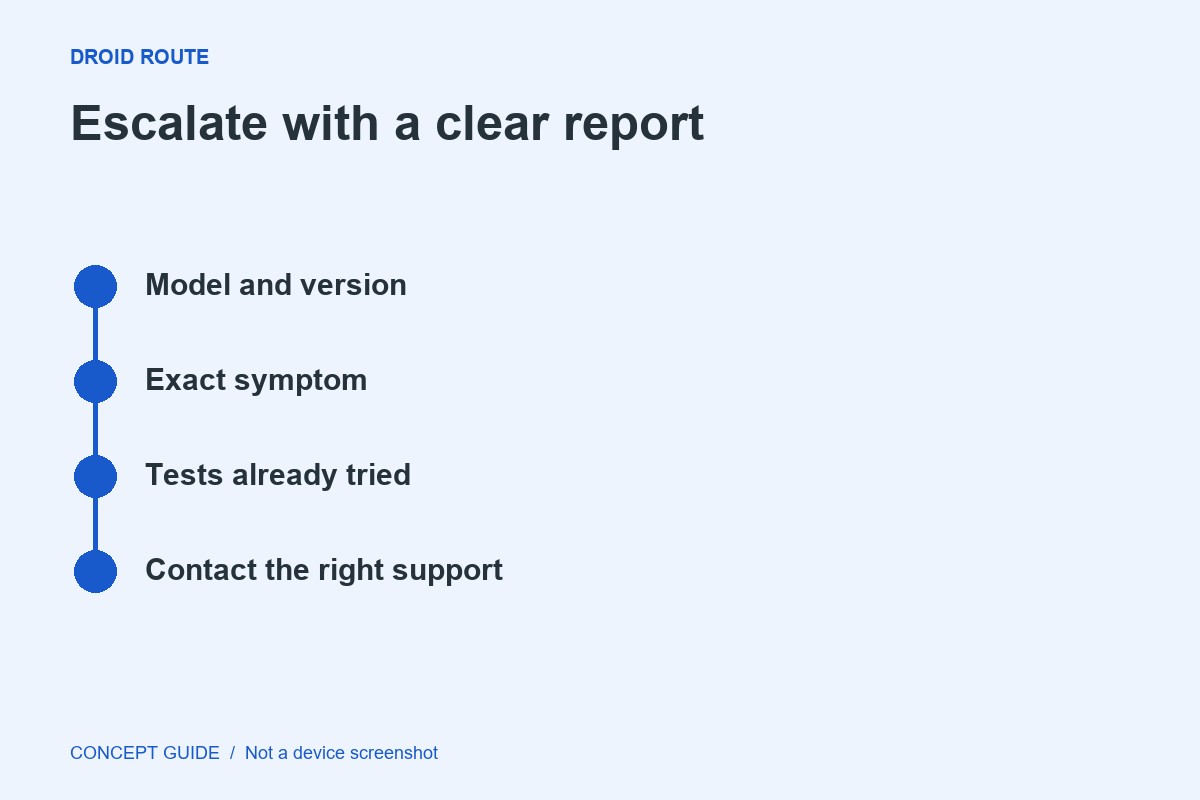
Record the update context
Note the official store or publisher channel, the installed version, the exact error and whether other app updates work. Do not substitute an unrelated download source to bypass the problem before understanding it.
Check the ordinary prerequisites
Verify the connection and available storage using the device's settings. If the store asks for a normal sign-in action, use its genuine interface. Never share a password or one-time code with a person claiming to diagnose the update.
Check whether this is one app
If only one update fails, read the publisher's current requirements and support information. If many fail, follow the store's own troubleshooting path. This distinction helps decide who can investigate the issue effectively.
Protect existing data
Uninstalling an app can remove local information and does not prove the next release will install. Verify backup or export coverage before considering that step. Keep the exact error for support rather than clearing the evidence through repeated destructive attempts.