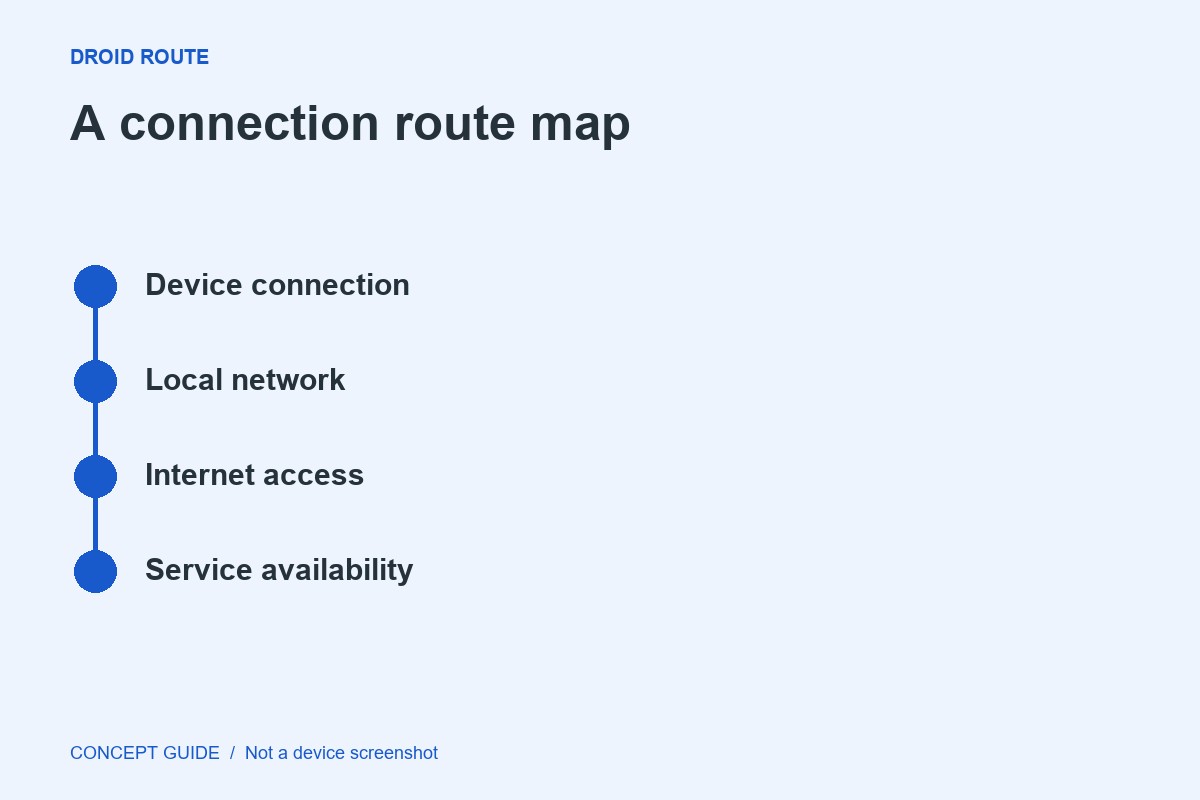
A phone-to-PC transfer crosses two operating systems and several stages. Identify the stage that fails so you do not keep changing discovery settings after the devices already see each other.
Check the supported setup
Use Google's official Quick Share for Windows guidance for current system requirements. Confirm Bluetooth and Wi-Fi are available and the devices are nearby. Follow the guidance on how to run the application rather than adding administrator privileges as a general fix.
Observe discovery separately
If the computer does not appear, review its receiving visibility and the phone's sharing screen. On a managed network, client restrictions can affect communication. Ask the network owner before attempting to change shared infrastructure.
Confirm the intended recipient
When a device appears, verify the name and any displayed confirmation code before accepting. Start with a harmless small file. An acceptance prompt means discovery worked; a later failure needs a transfer-focused investigation.
Verify the destination
Open the received file from the computer's expected receiving location. Keep the source until that check passes, then return visibility to its normal setting. If the problem continues, report the stage, operating-system versions and exact error using the official support route.